

 The free way to schedule on X is the calendar icon in the x.com composer. Checked 18 November 2026.
Here's how to schedule posts on X without paying anyone: open x.com on a computer, write the post, click the calendar icon, pick a time, hit Confirm, then Schedule. That's it. It's free and it's built in.
The annoying part is everything around it. Where do scheduled posts go? Can you do it on your phone? Do threads work? Do you need Premium? I went through X's own help pages this morning, 18 November 2026, and wrote down what X actually says. Where X says nothing, I'll tell you that too.
How to schedule posts on X from a computer
X's How to Post page covers this under the Desktop tab. In plain steps:
- Go to x.com and click into the compose box at the top of Home, or click the Post button in the sidebar.
- Write your post. A standard post is up to 280 characters, with up to 4 photos, a GIF or a video.
- Click the calendar icon at the bottom of the compose box.
- Pick the date and time.
- Click Confirm. The Post button now says Schedule.
- Click Schedule.
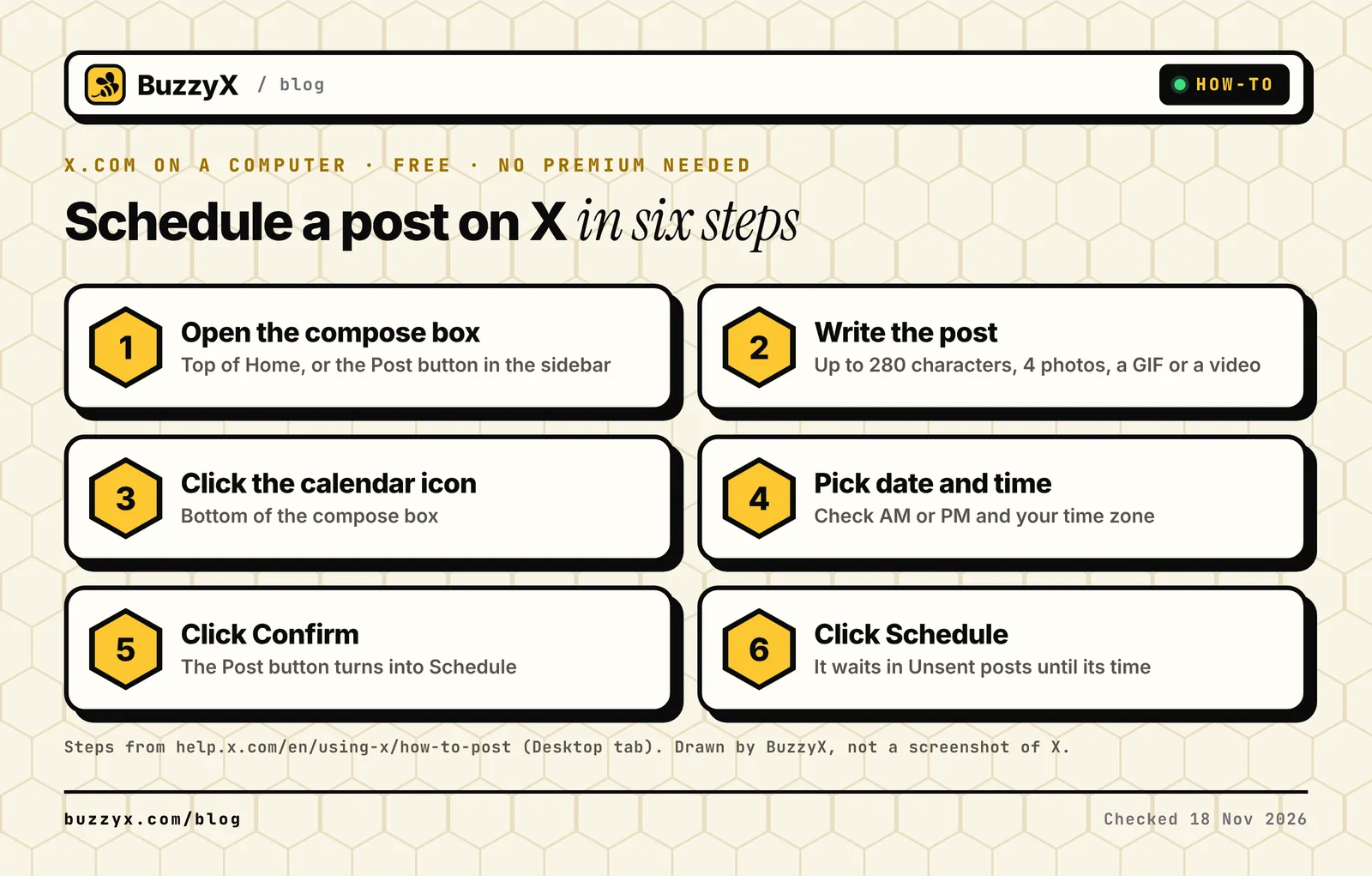 The six steps from X's How to Post page, Desktop tab. Drawn by us, not a screenshot of X.
One thing I'd check every time: the time zone and AM or PM. A post meant for 9 AM going out at 9 PM is the most common scheduling mistake, and it's easy to miss when you're tired.
Here's the line from X's help page, so you can see I'm not making it up:
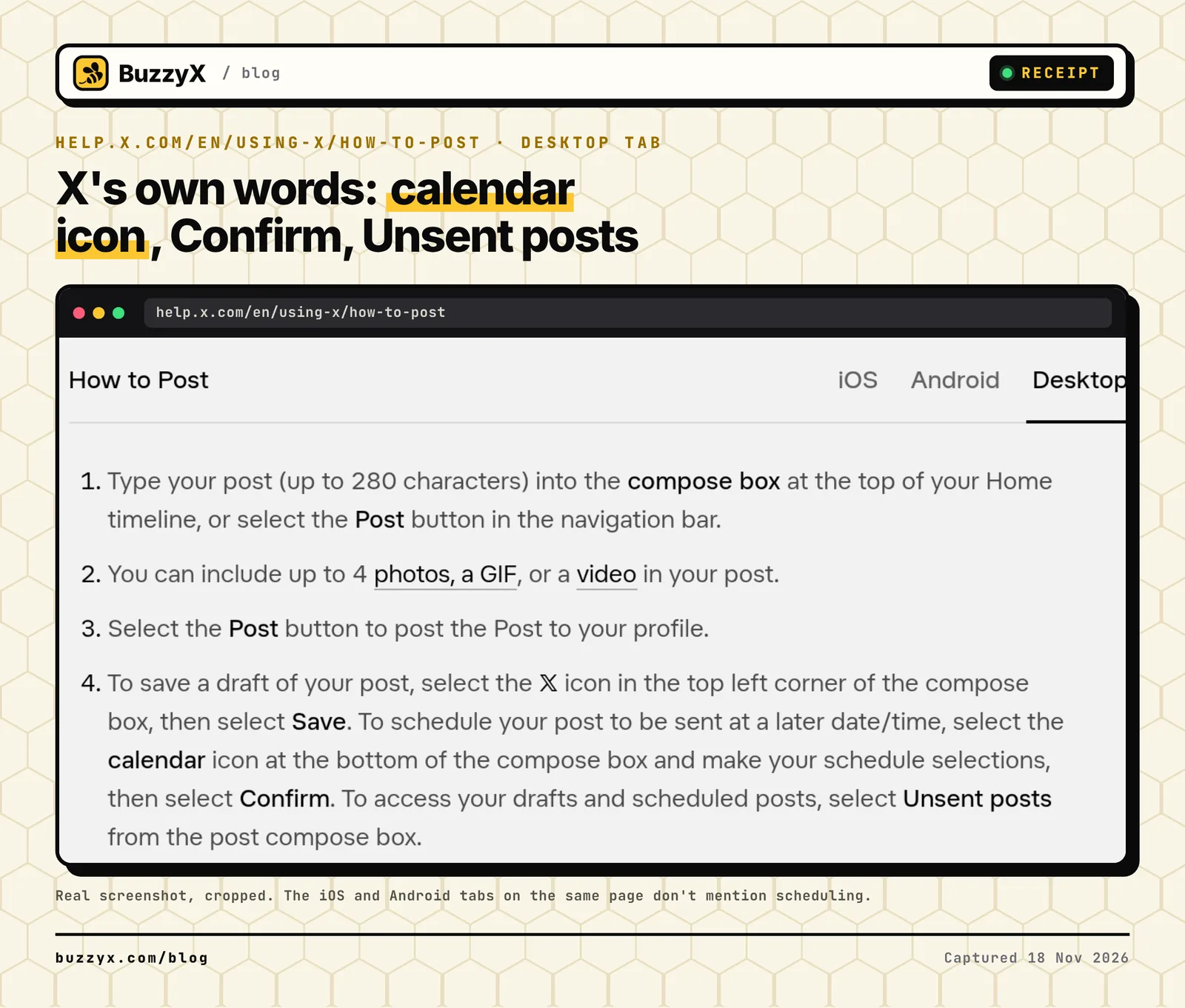 help.x.com/en/using-x/how-to-post, Desktop tab, captured 18 November 2026.
Where your scheduled posts go
A scheduled post doesn't show on your profile until it goes out. That's why people think it vanished.
X says to find it under Unsent posts in the compose box. Open the composer, click Unsent posts, and you'll see your drafts and your scheduled posts. From there you can open a scheduled post to change the text or the time, or delete it before it goes live.
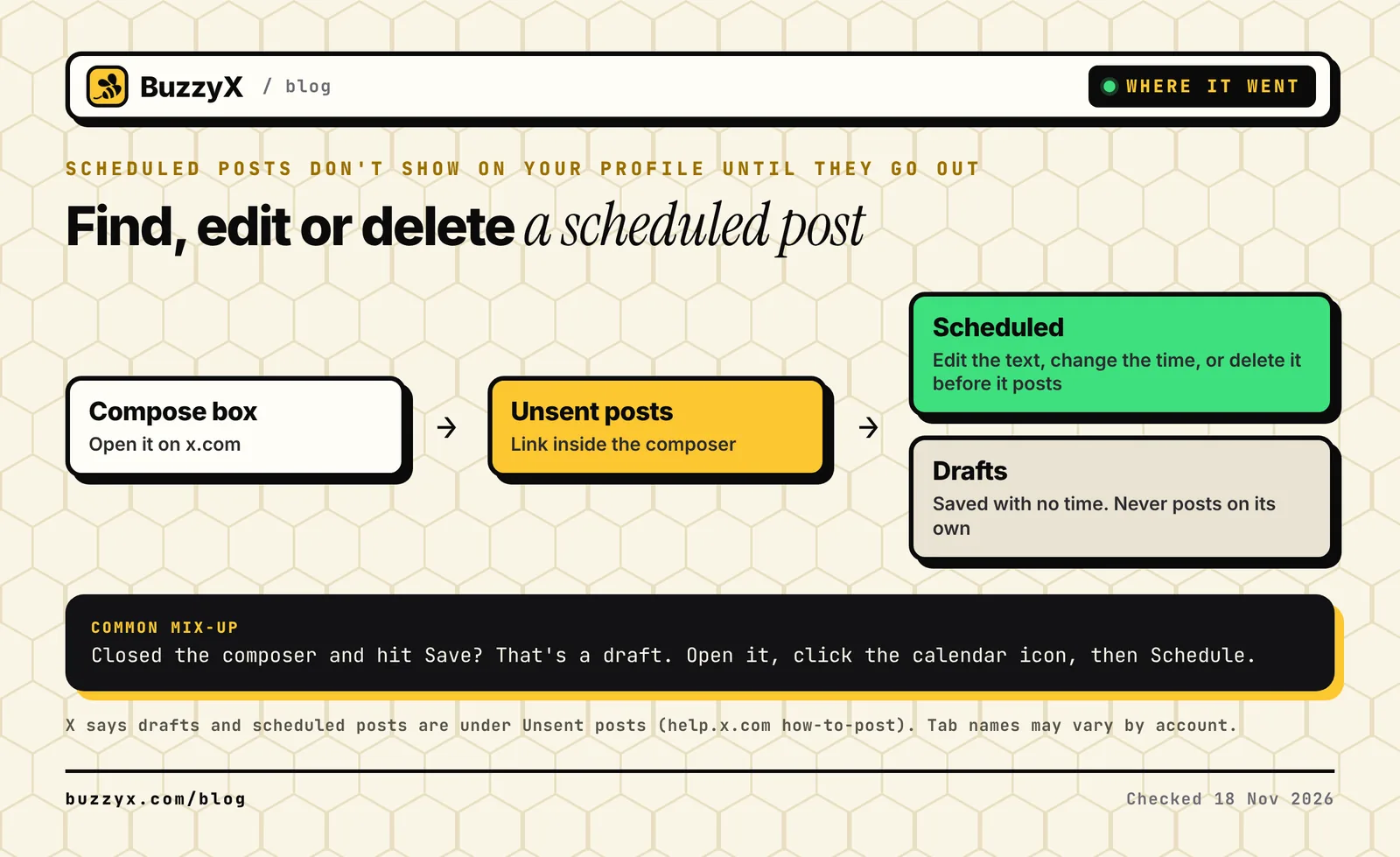 Drafts never post on their own. Only posts with a time do.
A draft and a scheduled post are not the same thing. If you close the composer and hit Save, it goes to Drafts with no time. It will sit there forever. Open it, set a time with the calendar icon, and schedule it.
Can you schedule posts on the X app?
This is where guides disagree, because it changed recently.
X's help page still lists the calendar step only under Desktop. The iOS and Android steps don't mention scheduling at all. But in September 2026, Benji Taylor, who works on design at X, said X was starting to roll out scheduled posts on mobile. Roboin tested it and found it in the iPhone app but not on Android.
So, as of today:
- iPhone: update the app and look for a calendar icon in the composer. It rolled out account by account, so you may or may not have it.
- Android: I couldn't confirm it from X or a hands-on test. Open x.com in your phone's browser instead. Roboin's Android walkthrough shows the calendar icon on the mobile website.
- Computer: works, and it's the only place X documents.
If you don't see the icon, it's not you. It's the rollout.
Do you need X Premium to schedule posts?
No, not for the x.com composer. X's How to Post page lists the calendar step with no Premium note.
Premium changes two things, though.
First, longer posts. Premium lets you write up to 25,000 characters, but X's Premium how-to page says plainly: "Longer posts cannot yet be scheduled." If your post is over 280 characters, there's no time option. Trim it or post it live.
Second, X Pro, the app that used to be TweetDeck. X Pro can schedule posts, including for several accounts, and you view them in a Scheduled column. But X's Premium page lists "Access to X Pro" under "Only for Premium+ Tier". In the US that's $40 a month on the web (checked 18 Nov 2026).
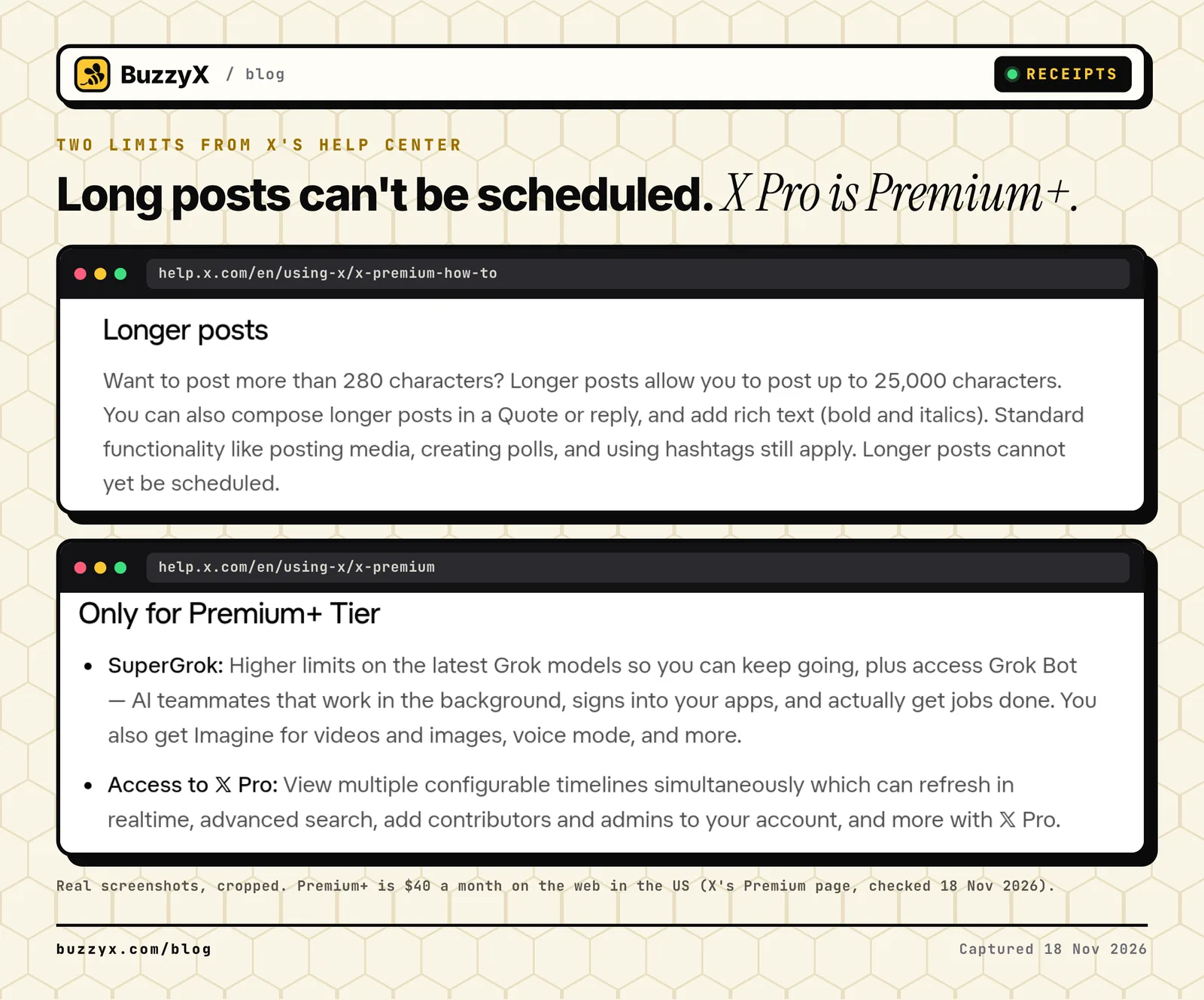 help.x.com x-premium-how-to and x-premium, captured 18 November 2026.
How to schedule a thread on X
X's help pages for the regular x.com composer only describe scheduling a single post. Its thread help page explains how to post a thread and save it as a draft, but not how to schedule one.
X Pro can schedule posts for several accounts and shows them in a Scheduled column, but I couldn't find a line that clearly says it can schedule a whole thread. That's Premium+ only.
Your other choice is a scheduling app that posts through X's API. Here's the whole picture on one card:
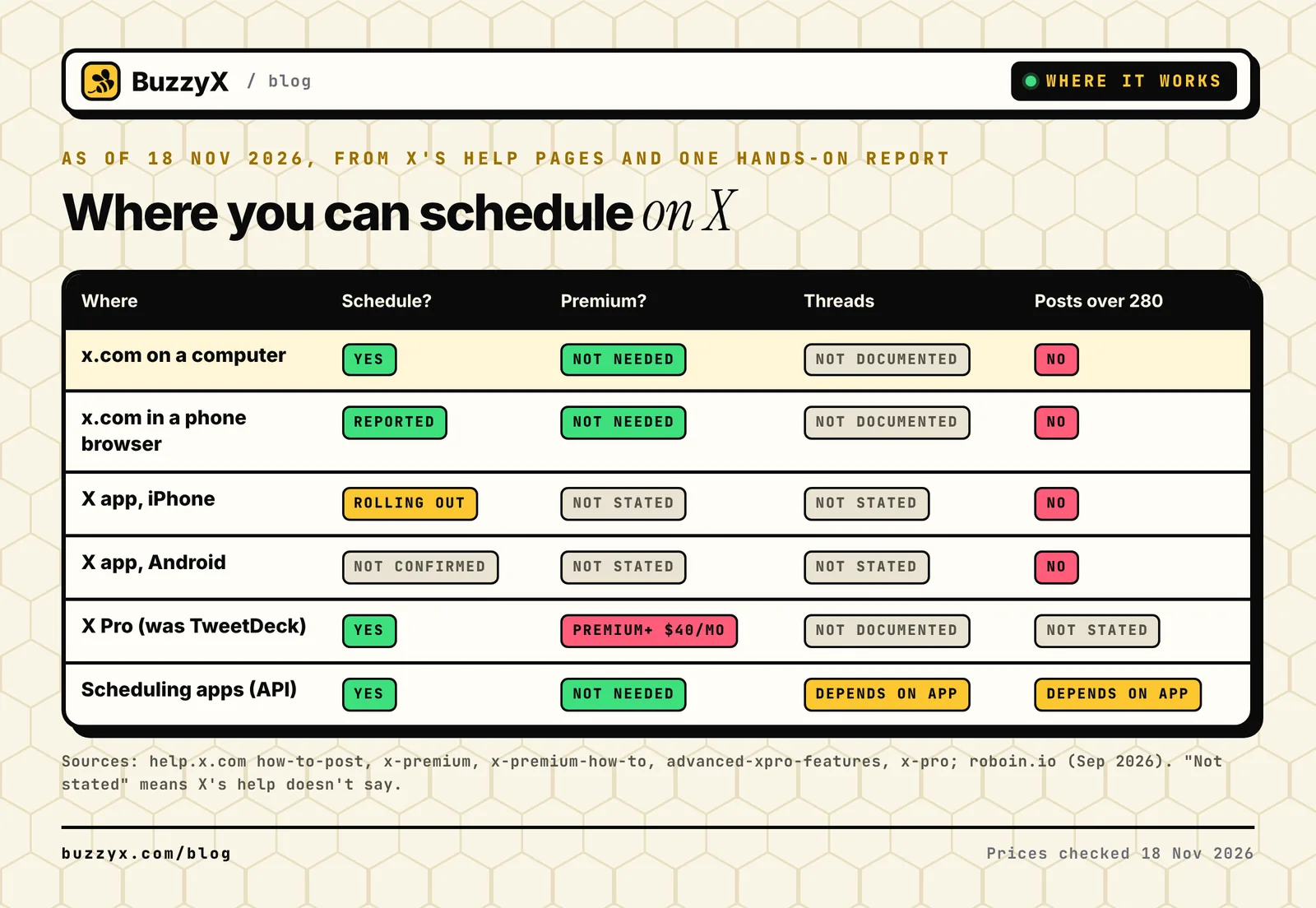 From X's help pages and the Roboin mobile report. Prices checked 18 November 2026.
Write posts that still make sense later
Scheduling has one trap nobody warns you about. You write a post on Sunday that only makes sense on Sunday.
Words like "just shipped", "today" or "right now" feel fine when you write them. Then the post goes out Thursday at 9 AM and it's off. Same with replies to a trend that died two days ago.
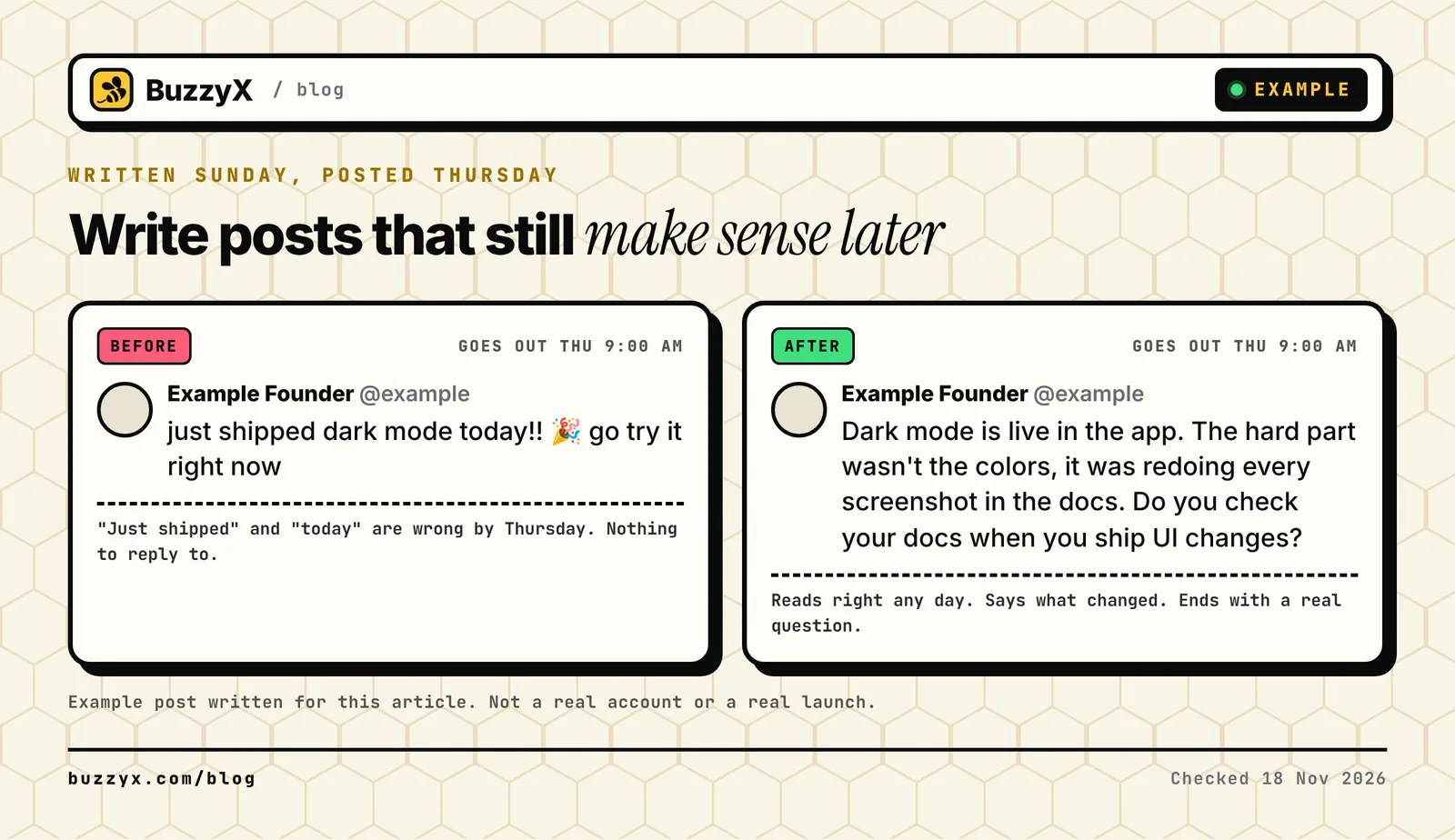 Example post, written for this article. Not a real account.
My rule: schedule the posts that don't depend on the moment. Lessons, build updates, mistakes, how you did something. Post the timely stuff live.
Also, don't schedule the same post again and again. X's automation rules say you "may not post duplicative or substantially similar posts on one account". Reword it or let it go.
A weekly routine that takes about an hour
Here's the routine I'd suggest if you build in public and don't want X eating your day.
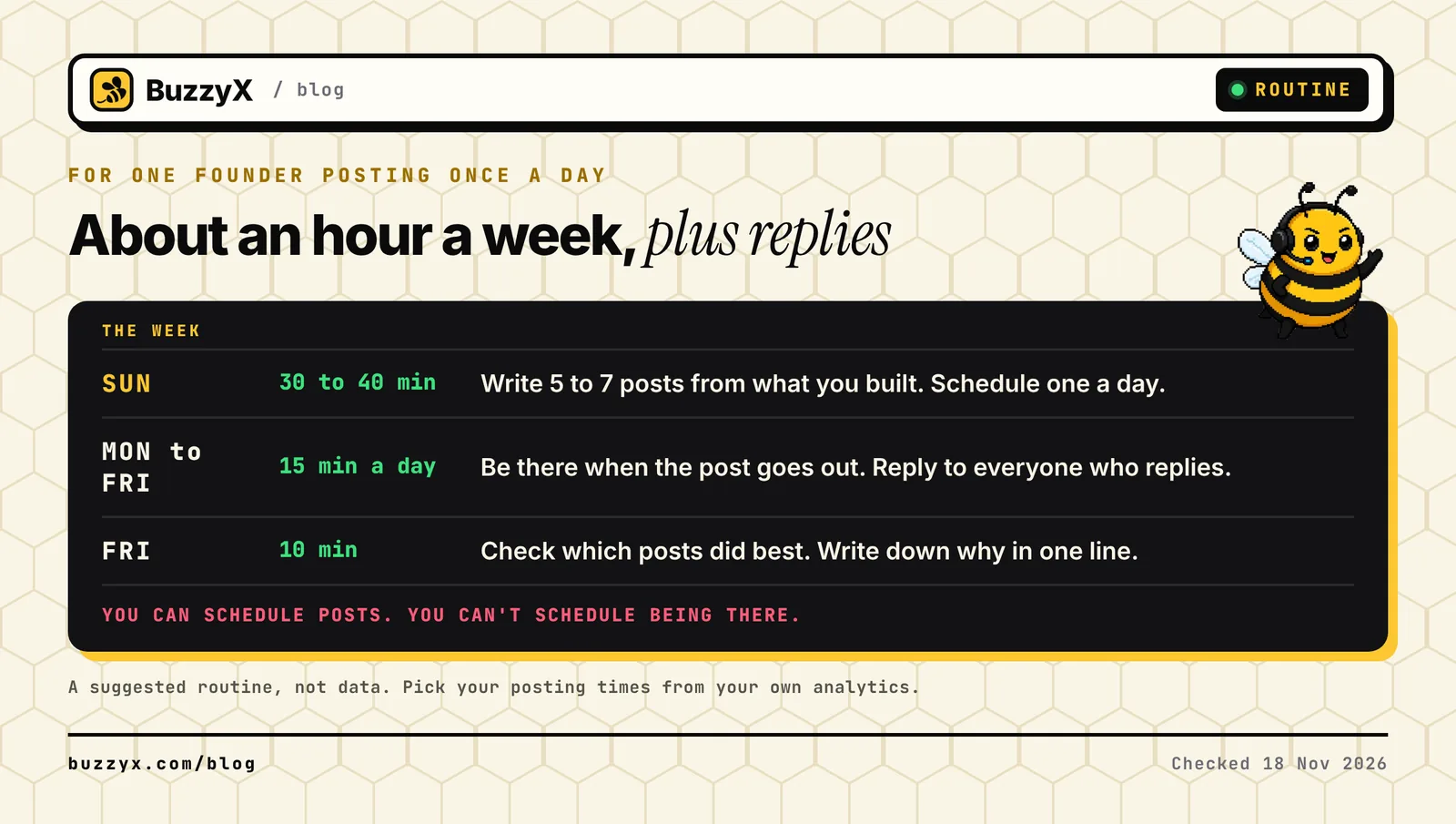 A plan, not a rule. Adjust the number of posts to what you can actually write.
- Sunday, 30 to 40 minutes: write 5 to 7 posts from what you built that week. Schedule one a day.
- Every weekday, 15 minutes: when your post goes out, be there. Reply to people who reply. This is the part you can't schedule, and it's the part that grows small accounts.
- Friday, 10 minutes: look at what did best and why.
Pick the times from your own numbers, not a generic chart. I wrote a whole post on finding your best time to post on X from your own data. If you're not sure how many posts a week is right, start with the how often to post on X guide.
When a scheduling app is worth it
The free x.com scheduler is fine for one person posting a few times a week. It falls short when you want to see the whole week at once, write with help, or know which posts worked.
That's the gap I built BuzzyX for. It has a calendar where you queue the week in your time zone, and it posts only what you wrote and scheduled. It never likes, follows, replies or DMs for you. You can schedule up to 100 posts ahead, with analytics and an assistant that drafts in your voice. It doesn't have a thread composer yet, so for threads, X Pro or another tool is still the better fit.
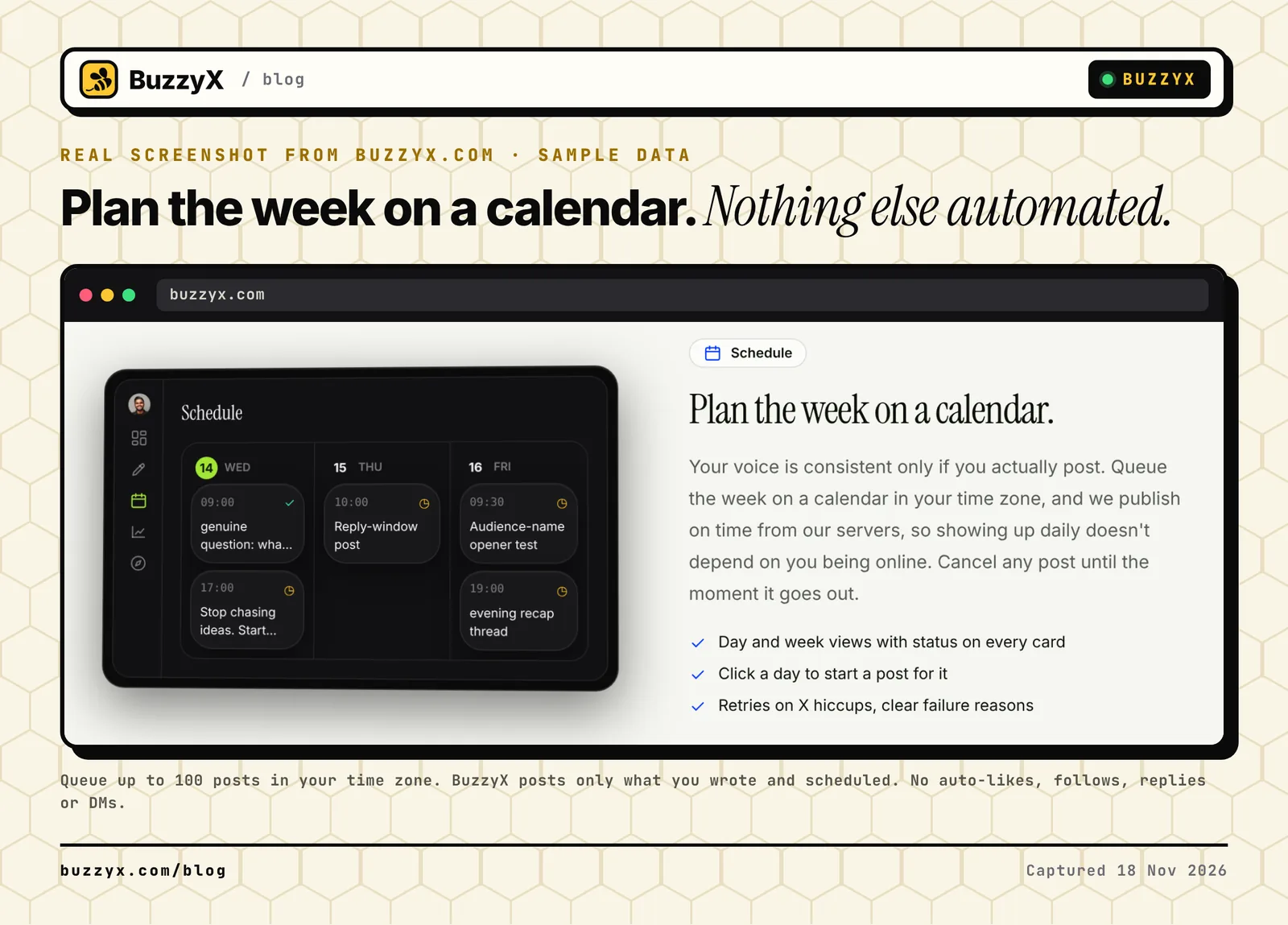 The BuzzyX calendar on buzzyx.com, captured 18 November 2026. Sample data.
A few things to know about any scheduling app:
- It should post through X's official API. X's rules warn against "scripting the X website", and say it "may result in the permanent suspension of your account."
- Apps pay X for API calls, which is why most have caps. I explained what the X API costs per call, and X keeps changing it. Expansions start costing money on 22 November.
- Tools come and go. If you were on Hypefury, it no longer supports X. If you're picking between two big names, here's Typefully vs Tweet Hunter, and how BuzzyX compares to X Pro.
If you want to try the calendar, BuzzyX has a 7-day free trial, then it's $29 a month (checked 18 Nov 2026).
FAQ
Does scheduling posts on X hurt reach?
I haven't found anything from X saying scheduled posts get less reach, and X's own composer has a schedule button. What I'd worry about more is posting and leaving. Replies are where small accounts get seen, and you can't schedule those. Schedule the post, then show up when people answer it.
Why can't I schedule a post on X?
Usually one of three things. The post is over 280 characters, which X says can't be scheduled yet. You're in a phone app that doesn't have the calendar icon yet, so use x.com in a browser. Or it's a thread, which the x.com composer doesn't document scheduling for.
Can you schedule many posts at once on X?
Not in bulk. On x.com you schedule one post at a time, then do the next one. If you want to plan a full week in one sitting, a calendar app is faster.
Where do I find my scheduled tweets?
Open the compose box on x.com and click Unsent posts. Scheduled posts sit there until they go out, not on your profile.
BuzzyX · X growth workspace
Grow on X with posts that sound like you.
Compose in your voice, schedule the week, find posts worth replying to and read real analytics from the X API. $29/mo after the trial, everything included.